

Key Takeaways
- Matching hardware to your actual use case saves money and prevents frustration.
- Keeping software and the operating system updated is one of the most effective security steps.
- Strong, unique passwords and two-factor authentication significantly reduce account compromise risk.
- Regular backups - ideally both local and cloud-based - protect against data loss.
- Routine maintenance like clearing storage and restarting regularly keeps performance stable.
Choosing and Setting Up Your Hardware
Home computing starts with hardware - the physical machine and its peripherals. The right choice depends on how you plan to use the computer, not on chasing the most powerful specs available.
For most everyday tasks - browsing, email, video calls, and document editing - a mid-range laptop or desktop with a modern processor, 8-16 GB of RAM, and a solid-state drive (SSD) is more than sufficient. SSDs are significantly faster than older hard disk drives (HDDs), which translates to quicker startup times and snappier application launches.
If you're setting up a desktop, position the tower or all-in-one unit in a well-ventilated spot away from direct heat sources. For laptops, avoid using them on soft surfaces like beds or sofas that can block ventilation vents and cause overheating.
Label Your Cables at Setup
When connecting a new desktop, label each cable with a small piece of tape before routing them. It takes two minutes and saves significant time the next time you need to move, swap, or troubleshoot a peripheral. A tidy, documented cable run also improves airflow around the tower.
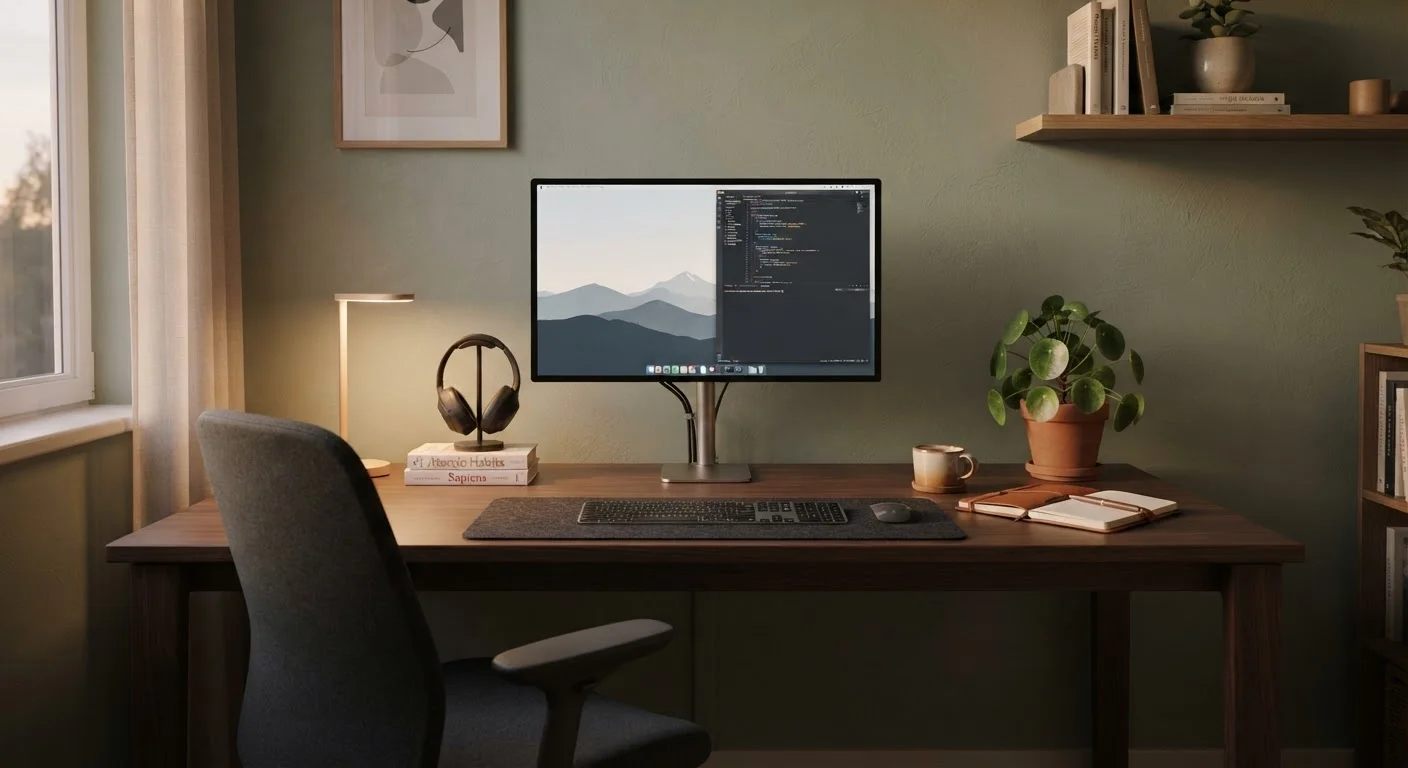
Peripherals matter too. A comfortable keyboard and mouse reduce fatigue during long sessions. An external monitor - even a basic one - adds screen real estate that improves productivity for tasks like managing spreadsheets or video calls. If you're new to home computing, our first-time user guide walks through hardware decisions in greater detail.
Operating Systems and Essential Software
Your operating system (OS) is the foundational software that runs everything else on your computer. The three main options for home users are Windows, macOS, and Linux. Windows and macOS come pre-installed on most consumer machines; Linux is free and open-source but involves a steeper learning curve for newcomers.
Beyond the OS, a well-rounded home computer needs a handful of core software categories: a web browser, a word processor or office suite, a PDF reader, and a file compression tool. Many of these are available at no cost. See our software essentials guide for a breakdown of which categories matter most and why.
95%
Share of cyberattacks exploiting known vulnerabilities
Security researchers broadly estimate that the overwhelming majority of successful attacks target vulnerabilities for which patches already exist, underscoring the value of timely updates.
3-2-1
Recommended backup copies rule
The 3-2-1 backup strategy - three copies, two media types, one off-site - is widely cited by data recovery professionals as a reliable baseline for home users.
When installing new software, download only from official developer websites or your OS's verified app store. Third-party download sites often bundle unwanted programs - or worse, malware - alongside legitimate applications.
Free vs. Paid Software: What to Know
Many capable applications are available at no cost, including office suites, PDF tools, and media players. Free versions from reputable developers are generally safe and functional for home use. Be cautious of "free" software from unfamiliar sources, as these sometimes include adware or data-collection components disclosed only in fine-print terms.
Securing Your Home Computer
Security is not a one-time setup step - it's an ongoing habit. The good news is that a small number of consistent practices account for the vast majority of protection against common threats.
- Use strong, unique passwords for every account. A password manager stores and generates them so you don't have to memorize each one.
- Enable two-factor authentication (2FA) on email, banking, and any account holding sensitive data. 2FA requires a second verification step - usually a code sent to your phone - in addition to your password.
- Keep your OS and applications updated. Most attacks exploit known vulnerabilities that updates have already patched.
- Use reputable antivirus software and keep its definitions current. Both Windows and macOS include built-in security tools that are a solid baseline.
Never Reuse Passwords Across Accounts
When one site suffers a data breach, attackers automatically test those credentials on banking, email, and other services - a technique called credential stuffing. A single reused password can cascade into multiple compromised accounts. Use a password manager to generate and store unique passwords for every account without memorization burden.
For a structured approach, our home computer security checklist covers each of these areas with specific, actionable steps.
Set your operating system and applications to update automatically rather than manually. Most people defer manual updates indefinitely, leaving known security gaps open for months.
Automatic updates remove the friction that causes delays; the vast majority of home-use updates involve no breaking changes and apply safely in the background.
Before troubleshooting a slow computer, check whether the machine simply needs a restart - it's the single most commonly overlooked fix and resolves memory and process issues instantly.
Computers accumulate background processes and memory leaks over time; a full reboot clears these without any technical knowledge required.
Everyday Tasks: Files, Printing, and the Web
Most home users spend their time on a handful of core activities. Understanding how to handle them efficiently makes computing less frustrating and more productive.
File Management
Organize documents into clearly named folders from the start. Use a consistent naming convention for files - including dates where relevant - so you can locate them quickly later. Cloud storage services sync files automatically and provide an off-site backup layer, which is useful if the local machine fails.
Printing
Modern printers connect via Wi-Fi, allowing any device on your home network to print wirelessly. Install the printer's driver software (usually available on the manufacturer's website) to unlock full functionality. If print quality degrades, a nozzle cleaning cycle - accessible through the printer's software - often resolves the issue before ink replacement is necessary.
Web Browsing Safely
Look for https:// in the address bar before entering any personal information on a website - the "s" indicates an encrypted connection. Be cautious with browser extensions; install only those from trusted developers, as poorly vetted extensions can read browsing data.
Beware of Phishing Sites and Pop-Ups
Fraudulent websites are designed to look identical to legitimate ones - banks, retailers, and government portals are frequently impersonated. Always type URLs directly into the address bar rather than clicking links in unsolicited emails or text messages. Legitimate organizations will never ask for your password via email.
Maintenance, Updates, and Troubleshooting
A computer that ran well when new can slow down over time without basic upkeep. Most maintenance tasks are straightforward and take only a few minutes.
Storage and Performance
Regularly review and delete files you no longer need, and empty the Recycle Bin or Trash. When a drive nears capacity - generally above 85-90% full - performance can degrade noticeably. Uninstall software you no longer use.
Restarts and Updates
Restarting your computer at least once a week clears temporary files and applies pending updates. Many update-related issues stem simply from a machine being left in sleep mode for weeks without a full restart.
Backups
Follow the 3-2-1 backup principle as a general guideline: keep three copies of important data, on two different types of storage, with one copy stored off-site (such as in cloud storage). This protects against hardware failure, theft, and accidental deletion.
Basic Troubleshooting
When something goes wrong, the classic first step - restart the computer - resolves a surprisingly large number of problems. If an issue persists, searching the exact error message online typically surfaces community-sourced solutions quickly. For persistent issues, your OS's built-in diagnostic tools are a useful next step before seeking professional help.
“The most dangerous phrase in computing is 'I'll update it later.' Deferred updates are the single largest preventable source of security incidents for home users.”
— Security Awareness Working Group, Industry cybersecurity education body