

Key Takeaways
- Software bloat - too many background processes and startup programs - is one of the leading causes of slowdowns.
- Solid-state drives (SSDs) and traditional hard drives both degrade over time, but in different ways.
- Operating system updates increase system demands, which older hardware may struggle to meet.
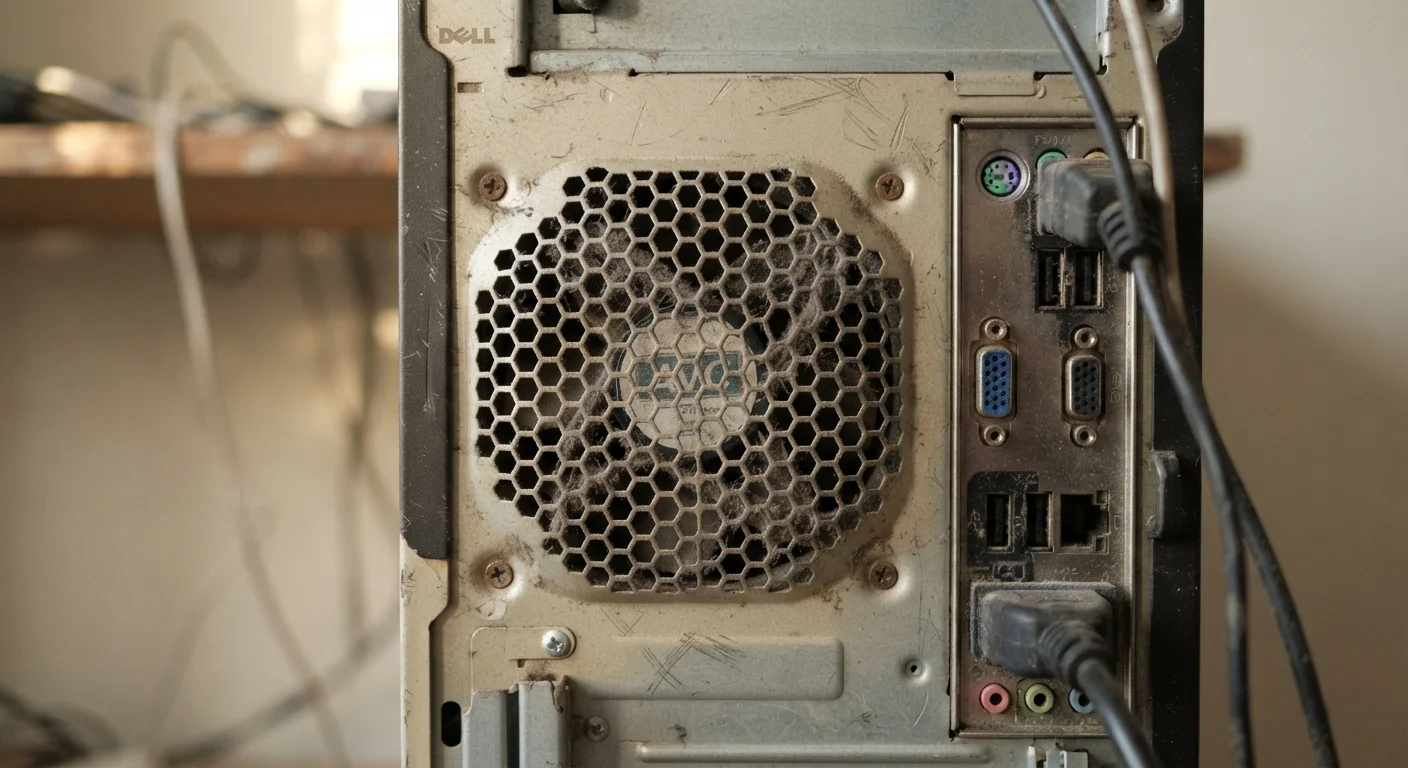
- Thermal throttling caused by dust buildup can significantly reduce processing speed.
- Many slowdowns are reversible through maintenance; some reflect genuine hardware aging.
Computer Performance Degradation
Computer performance degradation refers to the gradual slowdown most computers experience over months and years of use. It isn't one single problem - it's the combined result of software accumulation, hardware aging, and changing demands from modern applications. Understanding the causes helps users distinguish what can be fixed from what reflects normal wear.
Degradation is rarely caused by a single bottleneck. It typically involves the interaction of reduced storage throughput, increased background process load, and hardware components operating outside their original design tolerances.
Software Accumulation: The Invisible Weight
The most common culprit behind gradual slowdowns isn't hardware at all - it's software. Over time, computers collect applications, browser extensions, background services, and startup programs that each consume a small portion of memory and processing power. Individually they're minor. Collectively, they quietly consume the resources your computer needs to feel fast.
Operating system updates compound this effect. Modern versions of Windows and macOS are designed for current hardware, and each major release typically demands more from the CPU, memory, and storage than the last. A machine that handled its OS comfortably three years ago may now be working harder just to run the basics.
Background processes are a particular issue. Many applications install services that run automatically - checking for updates, syncing files, or monitoring usage - without ever appearing on screen. Reviewing what launches at startup and removing unused applications are among the most effective steps a user can take. See our maintenance habits guide for a practical approach to managing these over time.
Check Your Startup Programs First
Before assuming hardware failure, review which programs launch automatically when your computer starts. Both Windows and macOS include built-in tools to view and disable startup items. Removing applications you don't use daily can noticeably reduce boot times and free up background resources immediately.
Storage Slowdowns: More Than Just Full Drives
Traditional hard disk drives (HDDs) store data on spinning magnetic platters. As they fill up, the drive must work harder to find and organize data - a process called fragmentation. Performance drops noticeably when a drive exceeds roughly 80-85% capacity. While defragmentation tools can help, they don't reverse the physical limitations of an aging drive whose read/write heads or platters have begun to wear.
Solid-state drives (SSDs) don't have moving parts, so they don't fragment in the same way - but they have their own aging pattern. Each storage cell in an SSD can only be written to a finite number of times. Over years of use, cells begin to fail and the drive's controller works around them, which can gradually reduce write speeds. Most modern SSDs are built to outlast the useful life of the computer, but heavy workloads accelerate wear.
80-85%
Storage capacity threshold for HDD performance drop
Storage experts generally observe that traditional hard drives begin showing reduced read/write efficiency once filled beyond roughly 80-85% of capacity.
5-8 years
Typical practical lifespan of a home computer
Consumer technology analysts broadly estimate that home computers remain functional for five to eight years, though software demands can make them feel outdated sooner.
20-30°C
Temperature rise that triggers CPU thermal throttling
Hardware documentation from major processor manufacturers indicates throttling typically begins when chip temperatures approach or exceed rated thermal design limits, often triggered by ambient or cooling failures.
Storage health matters beyond speed. A drive showing early signs of failure may also cause system freezes, errors, or unexpected crashes that look like general sluggishness. Tools built into both Windows and macOS can report drive health status.
Heat, Hardware, and Throttling
Modern processors are designed to protect themselves from heat damage by automatically reducing their clock speed when temperatures climb too high. This process - called thermal throttling - is invisible to the user but can dramatically reduce performance. A machine that ran cool when new may throttle constantly after years of dust accumulation has restricted its airflow.
The fix is often straightforward: cleaning dust from vents, fans, and heatsinks restores airflow and allows the processor to run at full speed again. Laptop users in particular benefit from this, as their compact designs leave little room for airflow to begin with.
“Thermal management is one of the most underappreciated factors in long-term computer performance. A processor running ten degrees cooler isn't just quieter - it's faster, because it isn't throttling itself to survive.”
— Hardware engineering perspective, Widely held view among PC hardware engineers and system builders
Beyond heat, component aging affects performance in subtler ways. Capacitors on motherboards degrade over time, memory modules can develop errors, and older graphics components may struggle with tasks they once handled easily. These changes are gradual and often indistinguishable from software-related slowdowns without diagnostic tools.
For a different but related angle on hardware degradation, battery degradation in smartphones follows a similar pattern of incremental physical wear that compounds over time.
What's Fixable - and What Isn't
Understanding the difference between software-side and hardware-side slowdowns shapes what you should do next. Software causes - bloated startup lists, full storage, outdated drivers, or malware - are largely reversible. A systematic cleanup often recovers performance that users assumed was gone for good. Our article on common computing myths addresses some of the misconceptions that lead people to replace machines prematurely.
Hardware aging, by contrast, is not reversible. A mechanically worn hard drive, a thermally degraded CPU, or a battery that no longer holds charge are physical realities. In those cases, targeted upgrades - replacing an HDD with an SSD, adding RAM if the machine supports it, or replacing a laptop battery - can extend useful life meaningfully.
The key is diagnosis before action. Many users replace computers that could have been recovered with a clean OS reinstall and a storage upgrade. Equally, some users spend time troubleshooting software when the underlying cause is a failing drive. Checking CPU and memory usage in your system's task manager, monitoring storage health, and inspecting thermal readings are practical starting points - no specialized expertise required.
This article is for general informational purposes. For significant hardware faults or data loss concerns, consulting a qualified technician is advisable.