

Key Takeaways
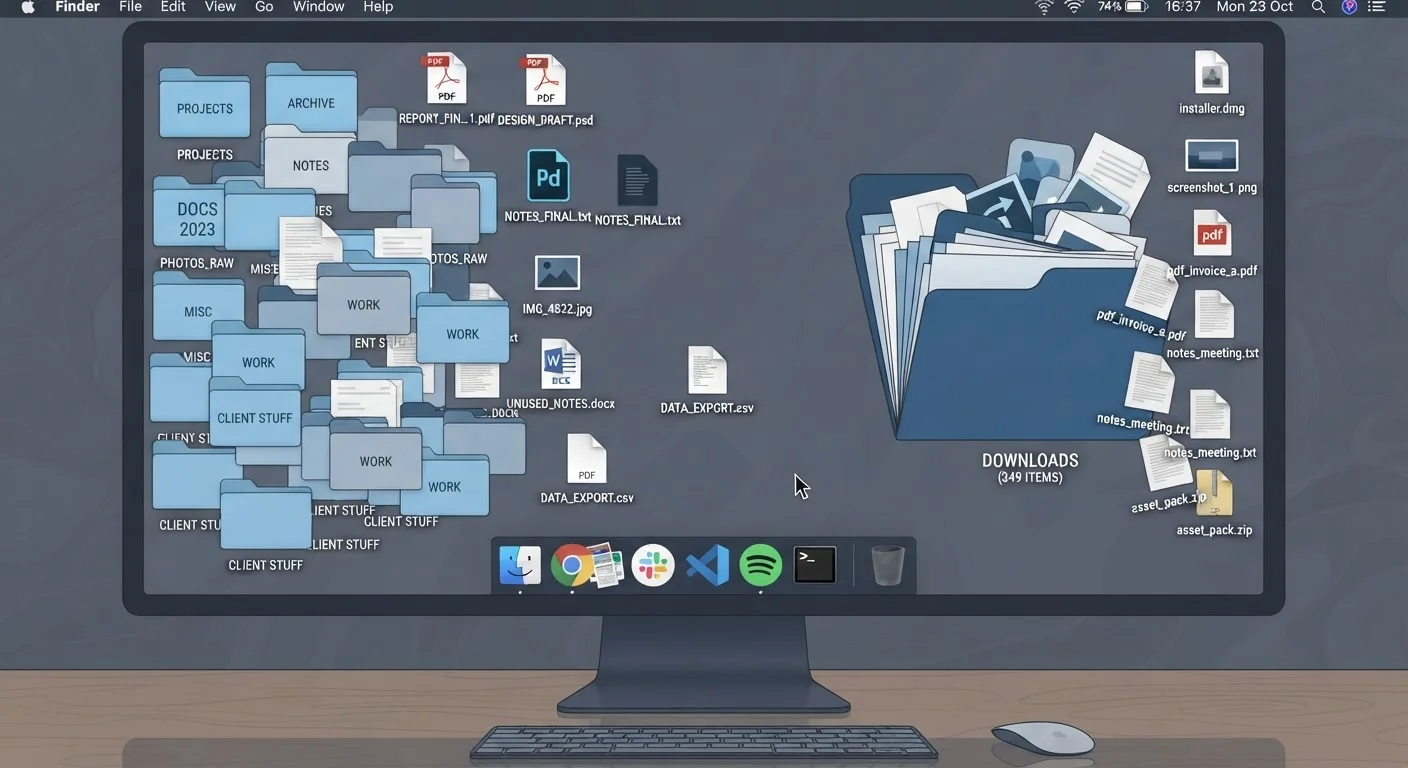
- Saving everything to the Desktop or Downloads folder creates clutter that's hard to untangle later.
- Vague file names like 'Document1' make files nearly impossible to find without opening each one.
- Duplicate files quietly consume storage space and cause confusion about which version is current.
- A simple, consistent folder structure takes minutes to set up and saves hours over time.
- Regular file maintenance - not just occasional cleanup - prevents problems from compounding.
Why File Organisation Quietly Undermines Your Computing Experience
Most home computer problems don't announce themselves dramatically. Instead, they accumulate - a slower search here, a missing file there - until using the computer starts to feel like wading through mud. Poor file organisation is one of the most common and most fixable causes of that friction.
The good news is that fixing it doesn't require technical expertise. It requires a small investment of intention upfront and a few consistent habits maintained over time. Understanding where organisation typically breaks down is the first step.
~26 min
Time workers spend daily searching for files
Research from IDC has long cited knowledge workers spending roughly 2.5 hours per day on information retrieval tasks, including locating misfiled documents.
30%+
Storage often wasted on duplicate files
Industry estimates from storage optimisation research consistently suggest that duplicate and redundant files can account for over 30% of used storage on personal computers.
The Most Common File Organisation Mistakes - and How to Fix Them
The following mistakes are widespread among home computer users at every experience level. Each one is easy to fall into and - once recognised - straightforward to correct.
Using the Desktop or Downloads folder as a permanent storage location.
Why it happens: Both locations are easy to access and require no deliberate thought during a busy moment, so files land there by default and never get moved.
Saving files with generic, meaningless names like 'Document1,' 'Scan,' or 'Untitled.'
Why it happens: Default application names are accepted without thought, especially when a task feels quick or low-stakes.
Accumulating large numbers of duplicate files scattered across multiple folders.
Why it happens: Re-downloading attachments, copying files 'just in case,' and inconsistent backup habits all create duplicates that multiply silently over time.
Creating folder structures that are either too deep or too flat to navigate efficiently.
Why it happens: Users either over-engineer hierarchies with five or more nested levels, or dump everything into one or two folders - both extremes slow down retrieval.
Never deleting files that are no longer needed.
Why it happens: Storage feels abstract until a device runs slow or full, so there's no immediate pressure to purge old files.
Ignoring consistent naming conventions across a shared or multi-user computer.
Why it happens: Each household member organises files according to personal habit, resulting in overlapping and confusing folder structures.
For a broader look at how these habits connect to overall system health, the complete home computing guide covers organisation alongside security, software, and maintenance in one place.
Backups Are Not the Same as Organisation
Many users assume that syncing files to cloud storage means their files are also organised. Cloud sync preserves your files as-is - including all the chaos. Poor organisation in a local folder becomes poor organisation in the cloud. Structure your files intentionally before or alongside any backup strategy. For guidance on where different file types belong, see our article on cloud vs. local storage.
Building a File Structure That Actually Works
A practical folder structure doesn't need to be elaborate. A top level with four to six broad categories - such as Documents, Photos, Finance, Work, and Media - covers most households. Each category contains subfolders organised by project or year, and files are named clearly at the point of saving.
The key is consistency over perfection. A simple system you actually use beats an elaborate one you abandon after a week. If you're unsure where certain file types belong - especially when weighing local storage against cloud options - the guidance in cloud vs. local storage decisions can help clarify the tradeoffs.
Deleting Files Without Checking for Duplicates
Before deleting what looks like a duplicate, confirm it isn't the most recent version. Files with identical names can differ in content if they were edited separately. A quick check of the 'Date Modified' field in your file explorer takes seconds and can prevent accidental data loss.
Once your structure is in place, the maintenance required to keep it functional is minimal. A brief monthly sort of your Downloads folder and an annual review of completed project folders is typically sufficient for a home user. These small habits, combined with the routine maintenance steps that keep hardware and software healthy, make a meaningful difference in how reliable and pleasant your computer feels day to day.