

Key Takeaways
- Cloud storage syncs files across devices and protects against local hardware failure.
- Local storage is faster, private by default, and works without an internet connection.
- Sensitive financial and medical documents are often better kept locally, with encrypted backups.
- Photos and shared documents benefit most from cloud storage due to accessibility and redundancy.
- A hybrid approach - using both storage types strategically - gives most home users the best outcome.
Option A
Cloud Storage
The always-accessible, off-device option.
Best for: Files you need on multiple devices, share with others, or want protected against local hardware failure.
Option B
Local Storage
The fast, private, offline-ready option.
Best for: Large files, sensitive data, and anything you need to access quickly without relying on an internet connection.
If you work across multiple devices or locations
Cloud Storage
Cloud storage keeps your files in sync automatically, so you can pick up on a laptop what you started on a desktop without manual transfers.
If you handle large video or audio files regularly
Local Storage
Uploading and downloading large files is slow and eats into data caps; local storage handles bulk media without those constraints.
If you want protection from hard drive failure
Cloud Storage
Cloud services store copies on remote servers, so a crashed hard drive doesn't mean lost files.
If privacy and offline access are top priorities
Local Storage
Files stored locally never leave your device unless you choose to move them, and they're available even when your internet is down.
If you want the most resilient home storage setup overall
Cloud Storage
Combining local storage for speed and privacy with cloud backups for redundancy is widely considered the most robust approach for home users.
What Each Storage Type Actually Does
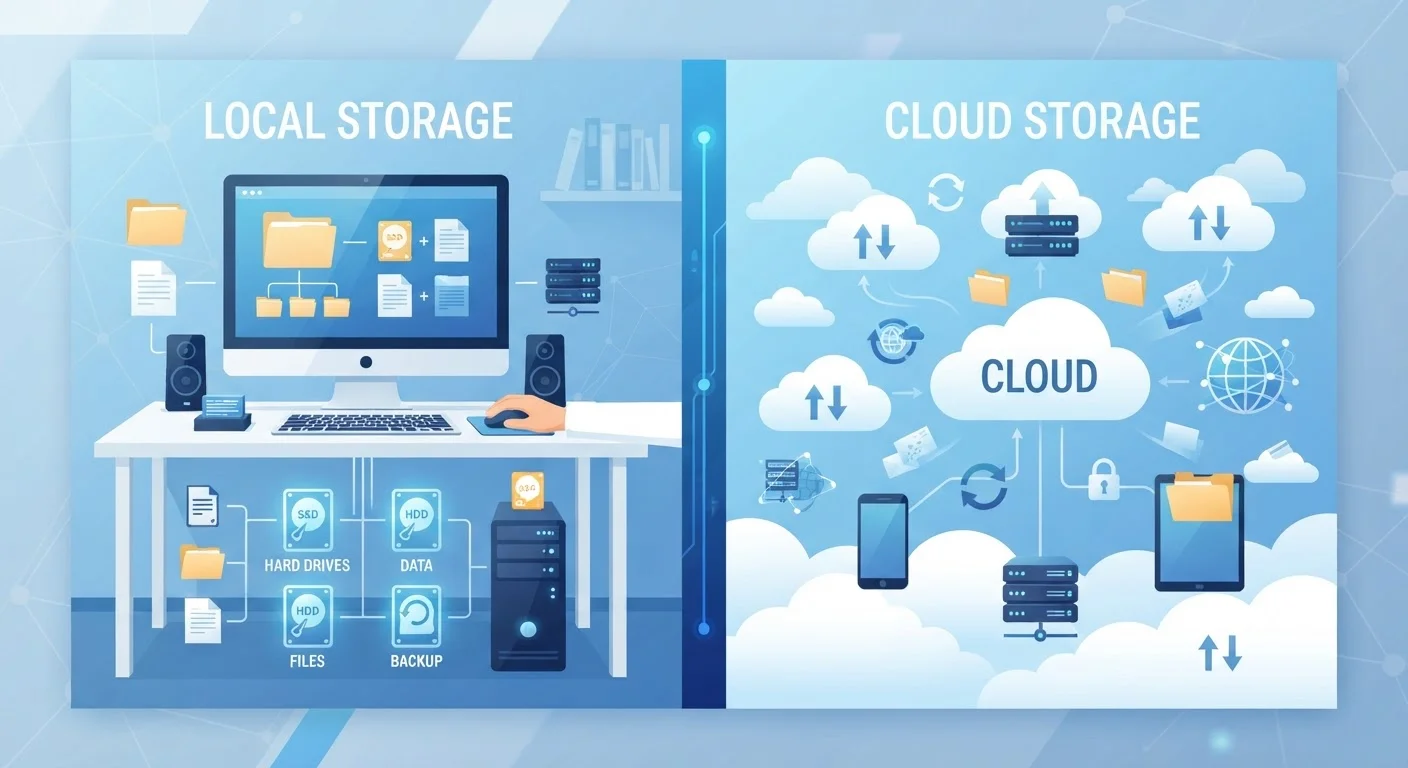
When you save a file to your computer's hard drive or SSD (solid-state drive), that file lives physically on your machine - that's local storage. When you save to a service like Google Drive, iCloud, or OneDrive, your file is uploaded to remote servers maintained by that company - that's cloud storage.
Both approaches store the same kinds of files: documents, photos, videos, music, and more. The difference lies in where the file physically resides, who can access it, and what happens if something goes wrong. Understanding that distinction helps you assign the right files to the right place - and avoid costly mistakes like losing a family photo archive to a failed hard drive.
If you're also deciding what kind of computer to pair with your storage strategy, see our guide on choosing between a desktop, laptop, or tablet before committing to a setup.
| Criterion | Cloud Storage | Local Storage |
|---|---|---|
| Access without internet | Limited (cached files only) | Always available |
| Speed for large files | Slower (upload/download dependent) | Very fast (especially SSD) |
| Protection from hardware failure | Strong (files stored remotely) | None without a separate backup |
| Privacy control | Shared with service provider | Fully in your control |
| Ongoing cost | Monthly subscription (beyond free tier) | One-time hardware cost |
| Multi-device sync | Automatic and seamless | Manual transfer required |
| Best for | Shared docs, photos, backups | Large files, sensitive data, apps |
Which Files Belong in the Cloud
Cloud storage earns its place for files that need to travel with you or survive hardware failure. Here are the clearest use cases:
- Photos and videos you want to preserve: Cloud services automatically back up your camera roll or photo library, protecting memories from drive failure without requiring manual effort.
- Documents you actively edit or share: Working drafts, collaboration files, and anything you open on more than one device belong in the cloud so edits stay synchronized.
- Receipts and tax documents: Storing digital copies in the cloud gives you redundancy - though for highly sensitive documents, encrypt them before uploading.
The practical limit of cloud storage is your internet connection. Uploading large files takes time, and accessing cloud files offline usually requires the app to cache a local copy first. Monthly subscription costs also accumulate, especially once you move beyond free storage tiers.
3-2-1
The widely recommended backup rule
Data recovery professionals broadly recommend keeping 3 copies of data, on 2 different media types, with 1 copy stored off-site.
~20%
Hard drives that fail within 4 years
Long-term drive reliability studies, including data published by cloud storage provider Backblaze, have shown meaningful failure rates within the first few years of use.
Which Files Belong on Local Storage
Local storage remains the right home for files that are large, sensitive, or frequently accessed at full speed.
- Video editing projects and raw footage: Editing software reads and writes huge files constantly. A local SSD dramatically outpaces cloud latency for this work.
- Sensitive personal records: Medical records, legal documents, and financial account details involve information you may not want stored on a third-party server - even an encrypted one. A locally encrypted folder or external drive keeps you in control.
- Installed software and system files: Operating systems and applications run from local storage by design. These files never belong in the cloud.
- Your working archive of completed projects: Once a project is done, large files can move to an external drive or NAS (network-attached storage) device to free up your main drive without incurring ongoing cloud fees.
The biggest risk with local-only storage is hardware failure. A hard drive that fails without a backup means permanent data loss. This is why the widely recommended 3-2-1 rule remains useful: keep three copies of important data, on two different storage types, with one copy stored off-site (which is where cloud backup earns its keep even for otherwise local files).
For practical guidance on organizing what you already have stored, the article on common file organization mistakes covers the pitfalls that make home computers harder to use over time.
Encryption Before Uploading Sensitive Files
If you choose to store sensitive documents - such as tax returns or medical records - in the cloud, consider encrypting them locally before uploading. Tools like 7-Zip (free) allow you to password-protect files before they leave your device. This adds a layer of protection that exists independently of the cloud provider's own security measures.
Building a Practical Hybrid Setup
For most home users, the answer isn't cloud or local - it's both, used deliberately. A workable setup looks like this:
- Use your computer's internal drive for active work, installed apps, and large media projects.
- Back up critical files automatically to a cloud service so they survive hardware failure.
- Use an external hard drive for large archives, raw backups, and files too big to store in the cloud cost-effectively.
This mirrors the principles that apply to phone storage as well - if you're managing storage across devices, the article on phone storage options explains how the same logic applies to internal memory, cloud, and expandable storage on mobile.
The right balance depends on your internet speed, how much you travel, and the type of files you create most. A home video editor and a remote worker sharing spreadsheets will land in very different places - and both setups can be valid. The goal is intentionality: knowing why each file lives where it does, rather than letting habit or default settings decide.